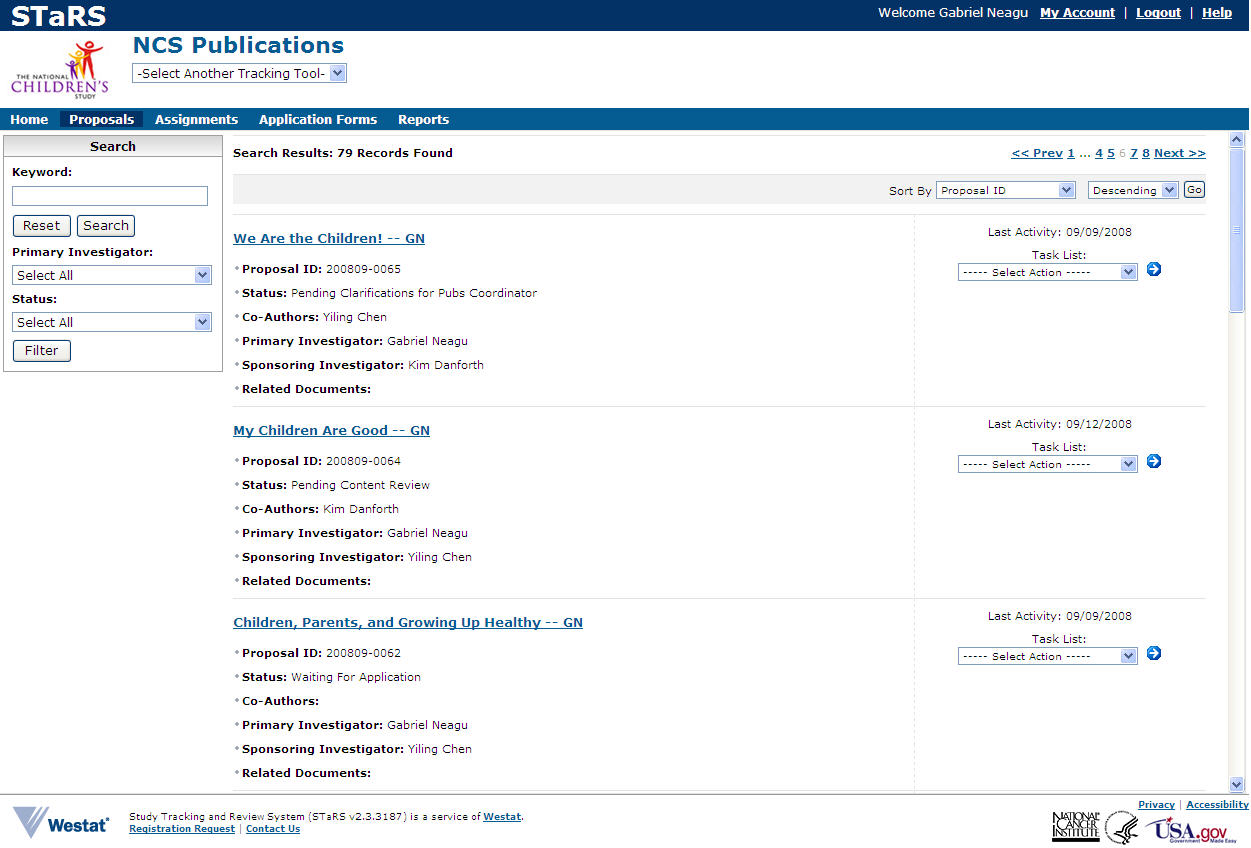
Under the menu items that contain the words "proposal" or "assignments" (but not "proposal details") application lists may appear in tables that, though depending on project, are similar across projects.
NOTE: The proposal titles in the images below are shown as mere examples, not as real proposals. The proposal title links to the Proposal Details pages of the selected proposal. The Related Documents title ("child" entry, document, or attachment) also links to the details page of the selected document (see the second image below).
Once an application has been submitted, STaRS guides it through its workflow. Its associated status, comments, and documents (attachments) can be viewed by the applying investigator and authorized reviewers in the Proposals, Assignments, or Accessible Proposals lists (some projects include an Accessible Proposals menu item; others don't). The applications made by an investigator are "owned" by the applying investigator and reside in the applicant's Proposals list. An investigator's list can be viewed by the owner, authorized reviewers, and other authorized users (such as coordinators, etc.).
To view your list of proposals, follow these steps.
1. Launch the system
2. Select the project.
3. Click Proposals. Your list of proposals will appear. Depending on your screen resolution, you may see per screen page summaries for one, two, or more submitted proposals of the total in the list.
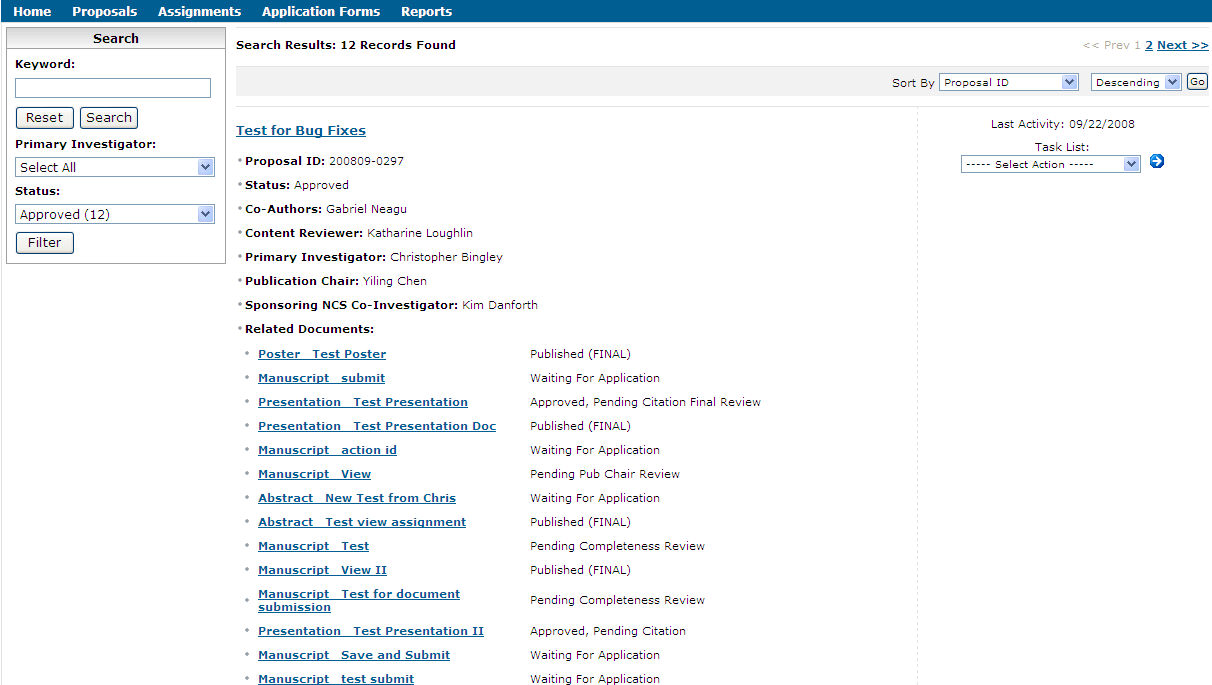
Proposal summaries may show values for all or some of these items: Title, Proposal ID number, Status, Co-Authors, Primary Investigator, Sponsoring NCS Co-Investigator, Publication Chair, NCS-PUB Co-Authors or Co-Investigator, Reviewer, Content Reviewer, Related Documents, etc.
Click a blue number or Next to view the selected page or the next one. The selected page number is grayed out. Prev, meaning previous, is enabled when you are viewing other than the first page. Next is disabled when you are viewing the last page.

The proposal title is a link to its Proposal Details pages. Click on a title to open the Proposal Details pages of the selected proposal. The Related Documents title ("child" entry, document, or attachment) also links to the details page of the selected document.
The list can be sorted by any value in the
Sort By field. The default
order is by Proposal ID

To sort the list by another value, follow these steps.
1. Click the down arrow to open the list of Sort By values and choose the desired value from the list (i.e., click on it). It will appear in the Sort By field.
2. Select Ascending or Descending.
3. Click Go. The list will be sorted by the selected value.


You can reduce the list of proposal records to those ones that share a keyword in their title. Follow these steps to do so.
1. Type a search term in the Keyword field.
2. Click Search. The list will be reduced to those proposals that have the specified term in common.
Click Reset to clear the Keyword field.

You can reduce the list of proposal records to those ones that share in common the same primary investigator (PI), current status, or a combination of these values. Follow these steps to do so.
1. Click the Primary Investigator down arrow and select the desired name from the list.
3. Click the Status down arrow and select the desired value from the list.
4. Click Filter. The list will be reduced to those proposals that meet the specified criteria.
Task List is a dropdown containing a list of actions available for each proposal and user role.

The available actions depend on two factors:
1.) the workflow step reached by a proposal and
2.) the user's role.
To select an action, click the down arrow and choose a value from the list. Some of the following actions may be available to investigators at various workflow steps.
View/Export Application – opens the application in an Acrobat window in View mode (you can view, export, or print it from this window). Before Acrobat opens, a File Download box may appear. If it does, click Cancel to close it (it will close and nothing happens), Save to save it to a new location, or Open to open the Acrobat window.
Edit Application – opens it in editable format.
Administration – opens a form on which authorized users (such as Coordinators, etc.) update information about the Confidentiality Agreement and/or (re)assign the Content Reviewer, Publication Chair, Primary Program Office (PO) Reviewer, and/or Lead Investigator.
Complete Review Form (PPA) – opens a form you complete to advance the application to the next review step: Ready for Content Review or Clarification Required. The former will “send” the application to the assigned Content Reviewer; the latter returns it to the Investigator for clarifications.
Delete Application – deletes applications that have not been submitted. Submitted applications cannot be deleted.
Edit and Submit Application – opens it in editable format. Use it when clarifications are required at status levels below (or prior to) Pending Revisions for Pub Chair.
Withdraw Application – withdraws a submitted application.
Postpone Request – postpones the application. You will fill out a form to provide a reason for the request.
Revise and Submit Application – opens it in editable format (similar to Edit and Submit Application). Use it when status is Pending Revisions for Pub Chair or higher.
Submit Document (post-approval action) – submits documents for review. Fill out the form, attach the files, and click Save and Continue.
Submit Citation (post-approval action) – submits citations for review. It is a Workflow 2 (WF2) action prior to the citation final review. It focuses on submitted documents.
Finalize Citation (post-approval action) – finalizes citations. It is a WF2 action prior to publication.
